Alternative Text
Each image posted in ulearn must include alternative text in the alternative description text box. Screen readers use this text to describe the image to users with visual impairments.
Table of Contents
Instructions
Add Alternative Text to a New Image
- Add a new image. Scroll down to the Alternative Text box and enter a description of the image. Click Save.
Note: If the image is decorative and not essential to the context, check the box next to Mark the image as decorative.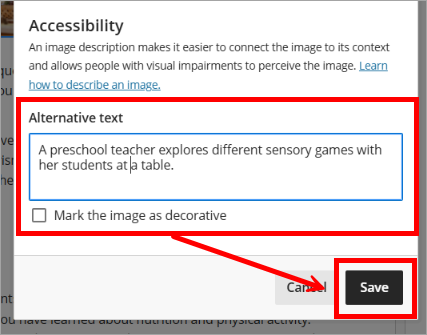
- Click Save to save changes to the item or assessment.
Add Alternative Text Using the Accessibility Checker
- If the image lacks an alternative description, the accessibility indicator dial is red.
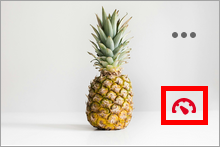
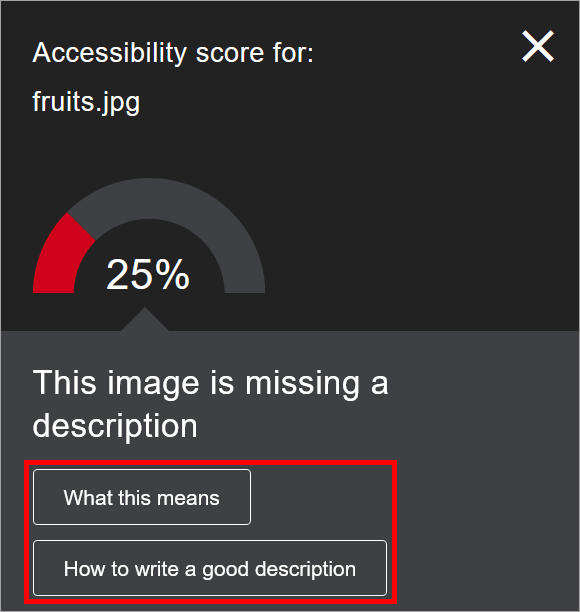
- Click the indicator dial. Select What this means for an explanation, and How to write a good description for quick tips.
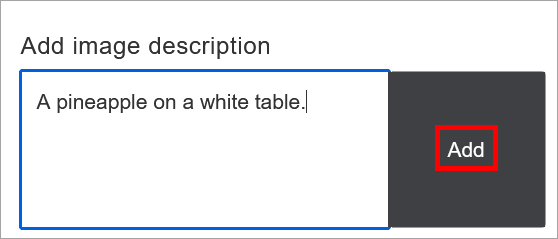
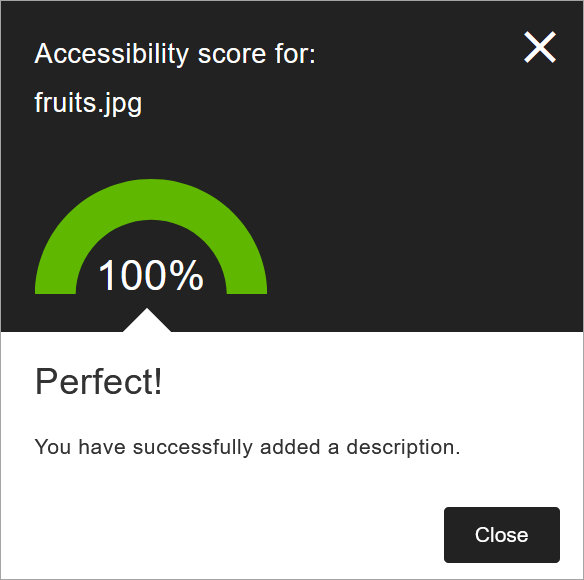
- Add an alternative description to the text field in the accessibility feedback window or edit existing text in the box. When finished, select Add.
- Make sure the description is more than just the title of the file, or the accessibility checker reports an error. Describe the image and what’s important to improve your score.
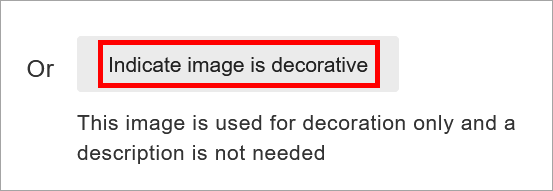
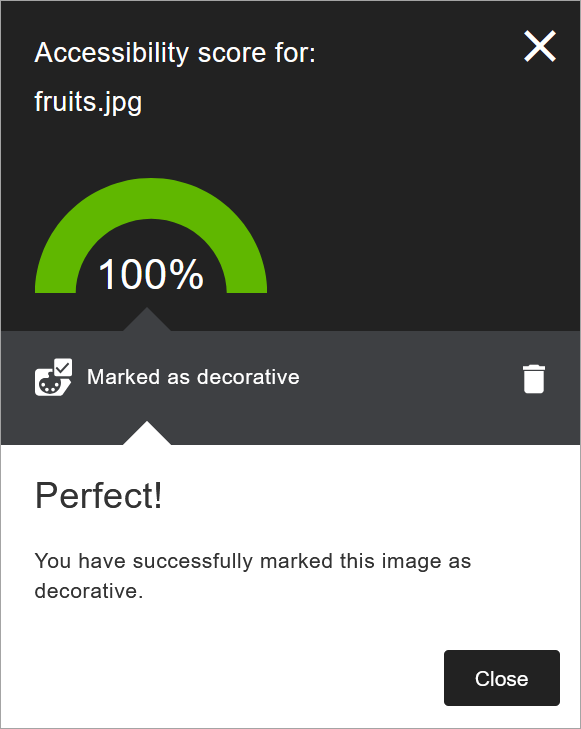
- If the image is only for visual effect and does not contain information relevant to the content, you can Indicate image is decorative. This means no alternative description is necessary, and the accessibility score improves.
IDT Tips for ALT Text
- Succinct and informative descriptions are best.
- Avoid phrases like “image of” or “picture of.” Screen readers already announce it as an image.
- Learn more about Writing Effective Alternative Text.