Batch Edit
Use the Batch Edit tool to edit existing due dates, access dates, and item visibility from one central location. The course must have existing due and access dates to use these features of the Batch Edit tool.
Instructions
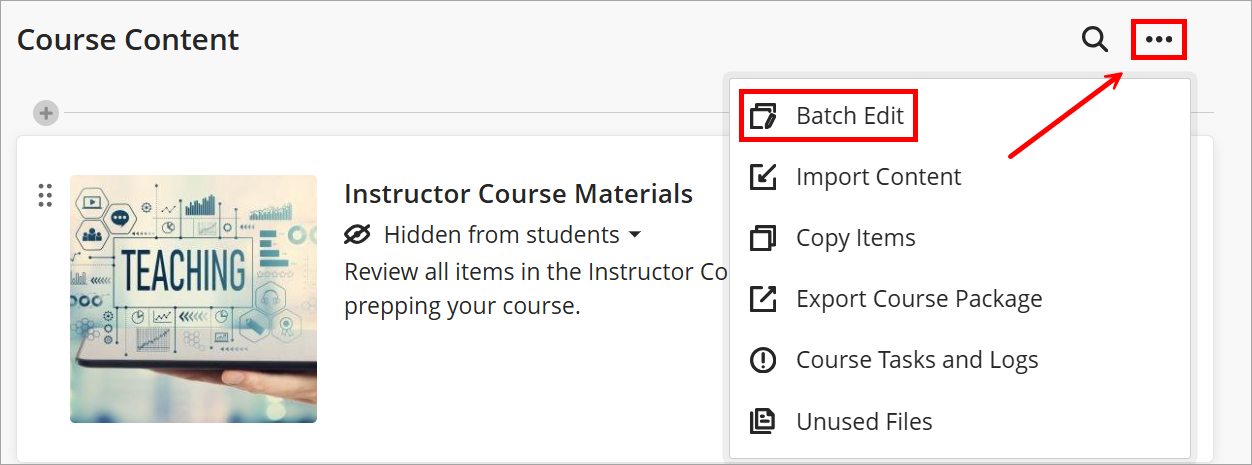
- From the top of the course homepage, click the three-dot menu and choose Batch Edit.
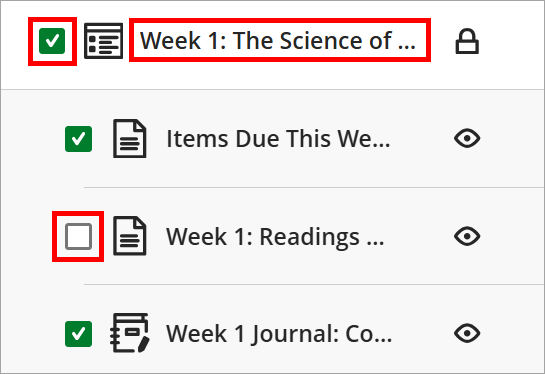
- Select the items to adjust. Check the box to the left of a learning module or multiple learning modules to select everything in the module. Expand a learning module by clicking its name to select or deselect individual or multiple items.
- To change due dates or access dates, click Edit dates at the bottom of the screen.

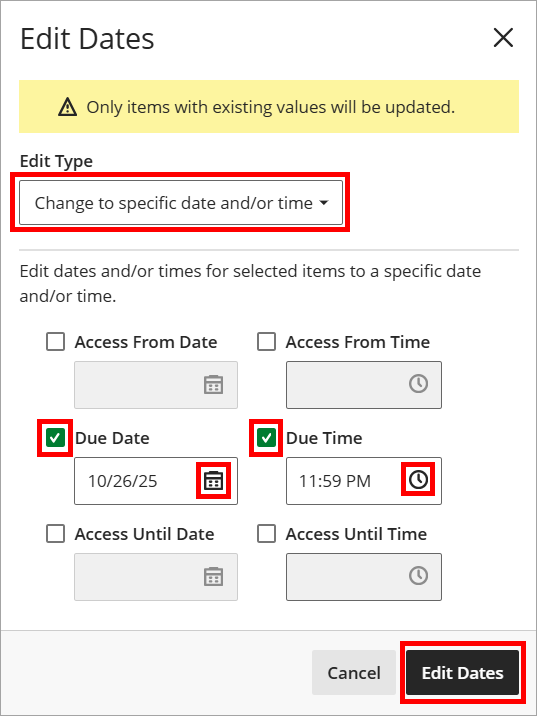
- Choose Change to specific date and/or time under Edit Type. Check off the boxes next to the dates to adjust. Click the calendar or clock to choose the new date and time or manually type in the boxes using the MM/DD/YY HH:MM XM format. When finished, click Edit Dates.
- To change item visibility, click Edit visibility at the bottom of the screen.

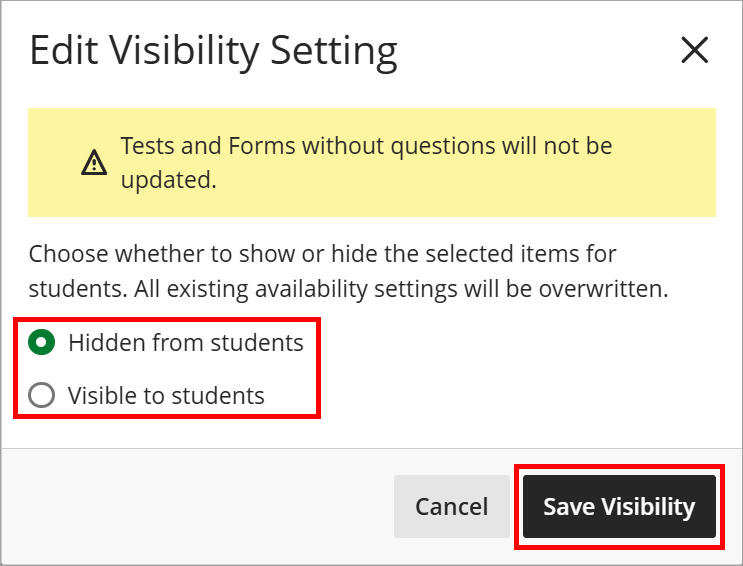
- Choose to make the item(s) hidden from or visible to students. Click Save Visibility.
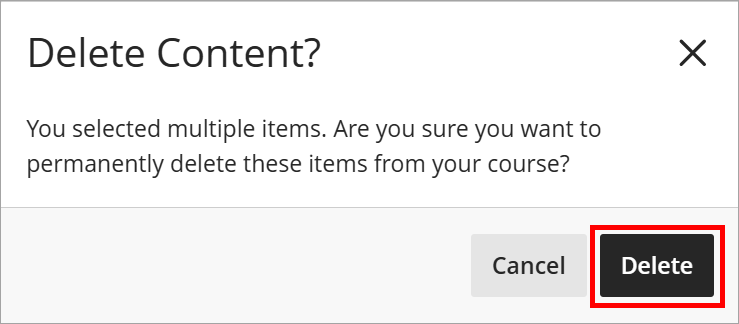
- To permanently delete an item(s) from the course, click Delete items at the bottom of the screen.

- Confirm the permanent deletion by clicking Delete.
IDT Tips for Batch Edit
- Bulk updates can impact course navigation and student clarity, so ensure that changes maintain consistency and structure.
- Preview your course after making batch changes.
- Ensure that you truly intend to delete content before proceeding.