Course Accessibility Report
The accessibility report is a built-in tool for identifying and resolving accessibility issues in course content. Access and utilize the report to enhance the course for all learners, with step-by-step tasks to complete directly in the report.
Table of Contents
- Accessing the Accessibility Report
- Components of the Accessibility Report
- Make Accessibility Repairs
Instructions
Accessing the Accessibility Report
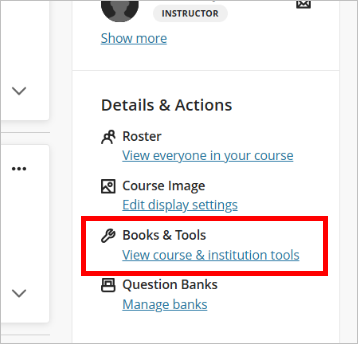
- Open a course. Click View course & institution tools in the Details & Actions menu.
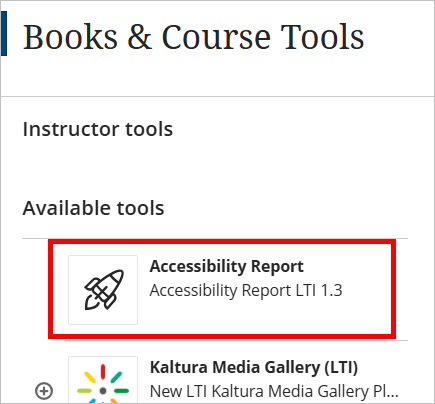
- Select Accessibility Report.
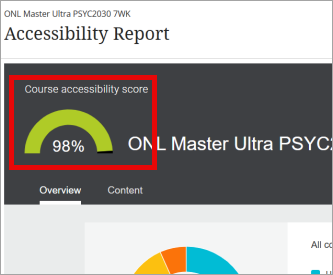
- View the overall course accessibility score in the upper left corner. Make repairs to get the score as close to 100% as possible.
Components of the Accessibility Report
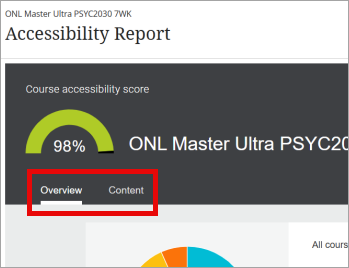
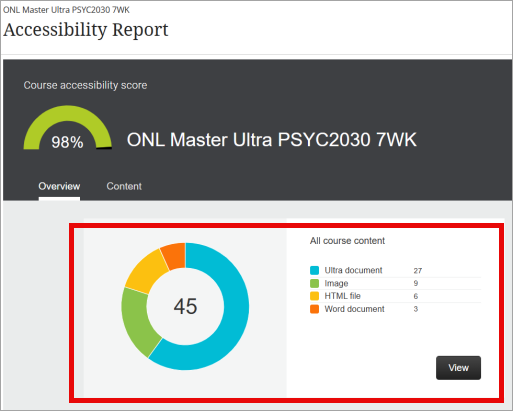
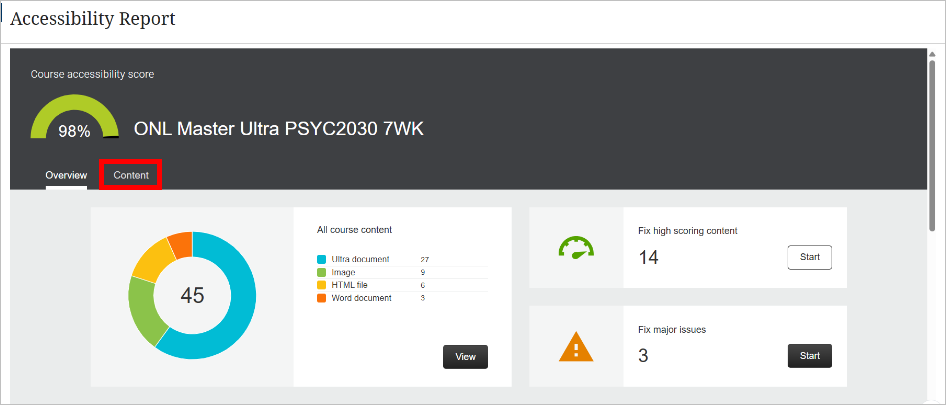
Overview and Content Tabs: located underneath the score are two tabs.- The Overview tab contains a dashboard that visually displays all types of content uploaded to the course. It indicates the content items easiest/fastest to fix and items with the lowest accessibility scores.
- The Content tab displays all course content by accessibility score
- All Course Content: The graph located below the overview tab. Visually displays the different types of content files uploaded to the course and the number of each item.
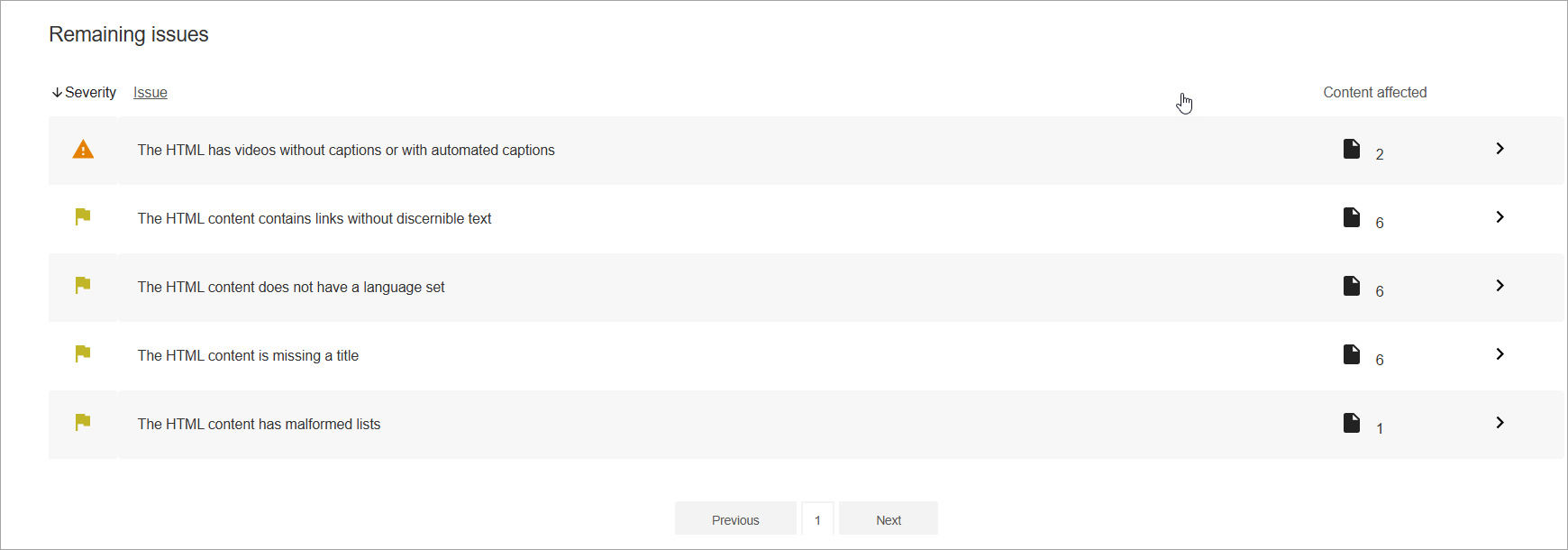
- Remaining Issues: Located below the graph, this section organizes course content by accessibility type and lists items in order of severity.
Score Indicator Dial: Located next to each file or at the top of an overall page (in edit view), these dials show the accessibility score. The dials indicate a percentage range corresponding to the accessibility of an item.
Note: There are light green and dark green dials with different indications.
| Score Indicator Dial | Meaning |
| Red Dial |
0-33% is low, severe accessibility issues. |
| Yellow-Orange Dial |
34-66% is medium, needs improvement. |
| Light Green Dial |
67-99% is high, more improvements are needed. |
| Dark Green Dial |
100% is perfect, no accessibility issues, but further improvements are possible. |
Severity Indicators: Located in the remaining issues section of the accessibility report. The severity indicators state the overall impact of an accessibility issue.
| Severity Indicator | Meaning |
 |
Severe: These issues require the most attention. |
 |
Major: These issues require attention. |
 |
Minor: These issues should be addressed. |
Make Accessibility Repairs
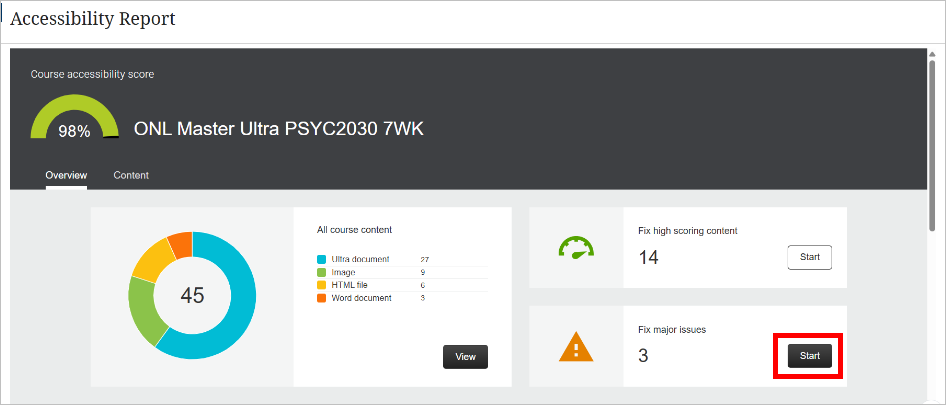
- Click Start in the Fix major issues section to prioritize fixing the most severe accessibility issues.
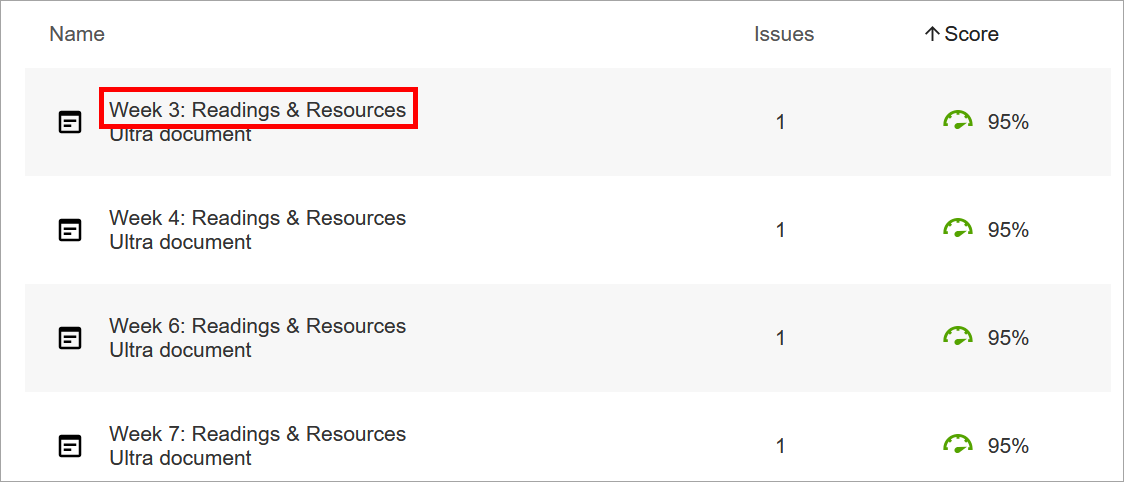
- Click the name of the item to view how to fix the accessibility issue.
- To view more information about the accessibility issue, select What this Means or follow the guidance on how to resolve it. Make the adjustments and choose Browse to upload the updated file.
Note: If you no longer have access to the original file, download a copy by clicking the download icon (down arrow) in the upper right and making necessary changes.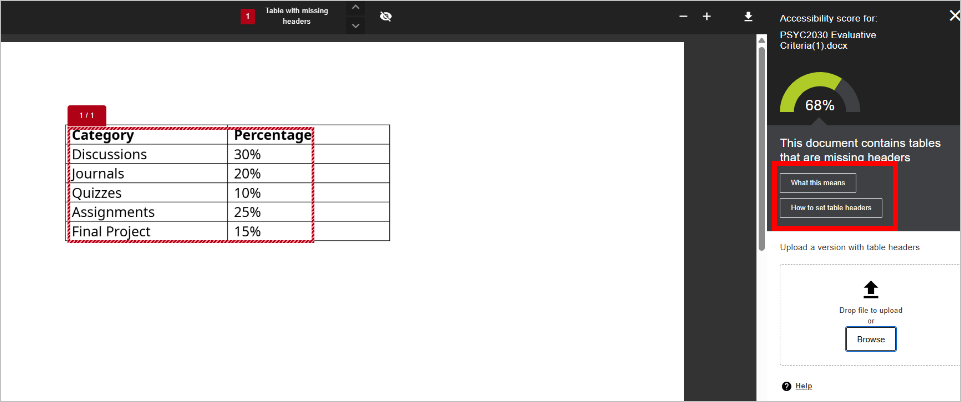
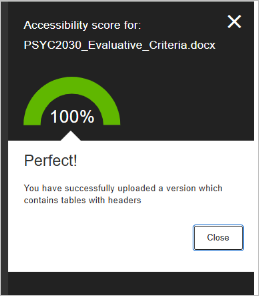
- Confirm the issue is resolved by checking the score of the item. After completing the repairs, click Close to return to the Overview menu.
- Repeat the steps above to Fix high scoring content. You can also fix all course content by selecting the Content tab.
IDT Tips for the Accessibility Report
- Review the Accessibility Report often.
- Convert uploads to Ultra Documents when possible.
- For additional accessibility resources, visit our Course Accessibility page.