Adding Grading Rubrics
A rubric is a scoring tool used to outline the criteria and performance levels for a graded assignment, helping ensure consistency and transparency in evaluation.
Table of Contents
Instructions
Create a Rubric
- Navigate to a course and click on Gradebook.

- Open the gradebook settings by clicking the gear icon in the upper right. The settings menu appears on the right side of the screen.

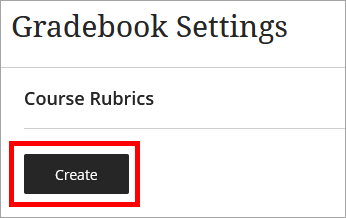
- Scroll down to the Course Rubrics section and click Create.
- A new page appears with a blank rubric template.
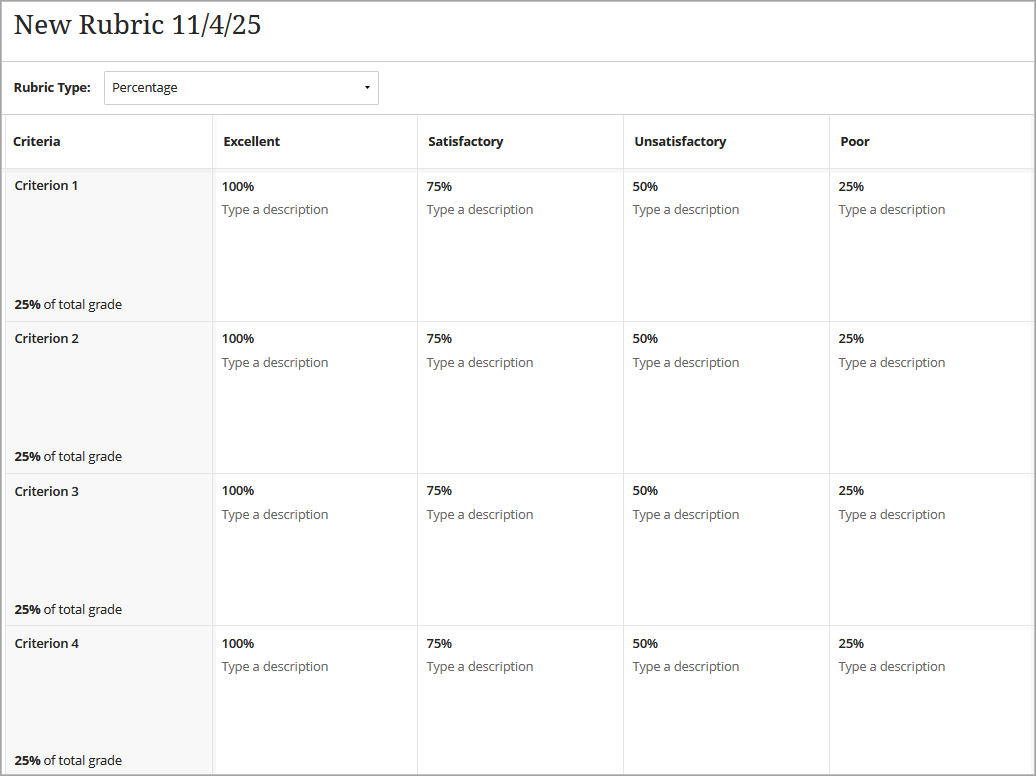
- The default title is based on the date created. Click the title to change the name.

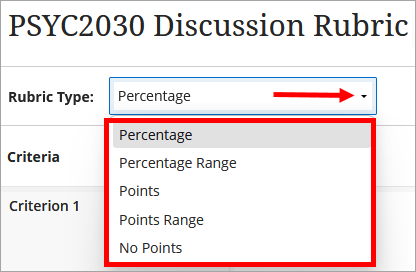
- There are several options for Rubric Type including Percentage, Percentage Range, Points, Points Range, and No Points. Click on the drop-down menu and select the rubric type that best suits your needs.
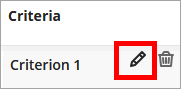
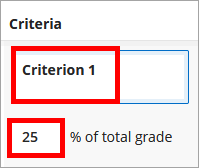
- The default rubric template contains four columns (levels of performance) and four rows (criteria). The template also provides default credit values (in the form of percentages or points, based on the rubric type chosen) in each cell of the rubric. These components can be edited in the same way. Hover over the section of the rubric to edit and click the pencil icon. Edit the selection including name, points, percentage, description, etc.
- To add a new column or row, hover between rows and columns and click on the plus (+) icon that appears.
- To delete a row or column, hover over the item and click the trash can icon.
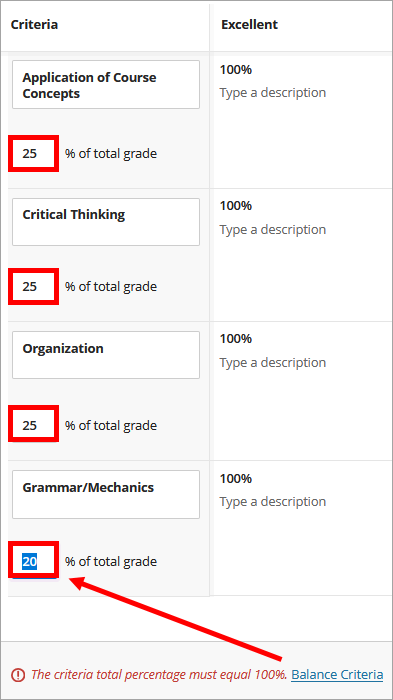
- If using a percentage or percentage-range rubric, check that the rubric totals are balanced and equal to 100%. Adjust the criteria manually to achieve balance. If the rubric is still unbalanced, click Balance Criteria. You cannot save the rubric until the total equals 100%.
- When finished, click Save.
Generate a Rubric with the AI Design Assistant
The AI Design Assistant can generate full assessment rubrics from descriptions. The clearer the information you provide in the description box, the better the rubric.
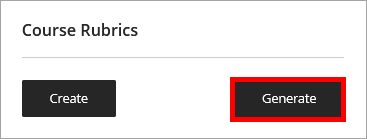
- In Gradebook settings, open the Course Rubrics panel and select Generate to access the rubric generator.
- There are several ways to customize the rubrics the AI Design Assistant generates. Enter a description to narrow the focus of the rubric. Select the rubric type: percentage, percentage range, points, point range, or no points. Adjust the complexity of the rubric. Define the number of columns and rows.
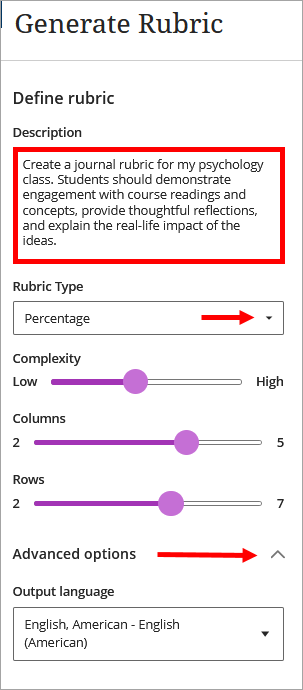
- Once you finalize the desired settings, click Generate.

- Check the rubric for accuracy and bias. If needed, you can edit the rubric description and complexity and re-generate the rubric. If the rubric meets your needs, select Continue to edit the rubric.

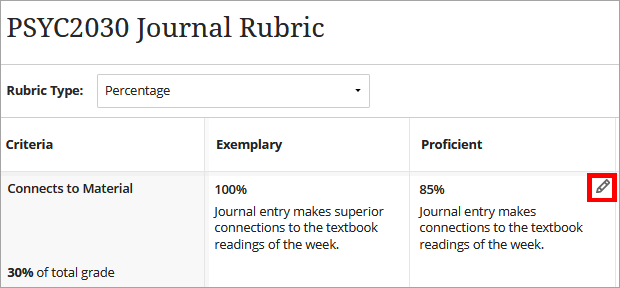
- Provide a clear name (i.e., PSYC2030 Journal Rubric).

- Review the rubric and click the pencil icon to make any desired changes.
Associate a Rubric
- In a course, navigate to an assignment, journal, or discussion to associate the rubric.
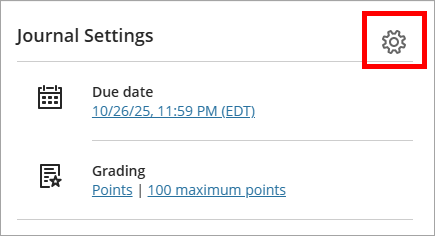
- Click on the gear icon (settings) for the assessment on the right side of the page.
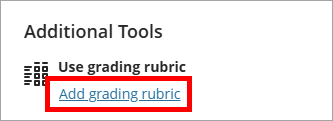
- Scroll down to Additional Tools and click Add grading rubric.
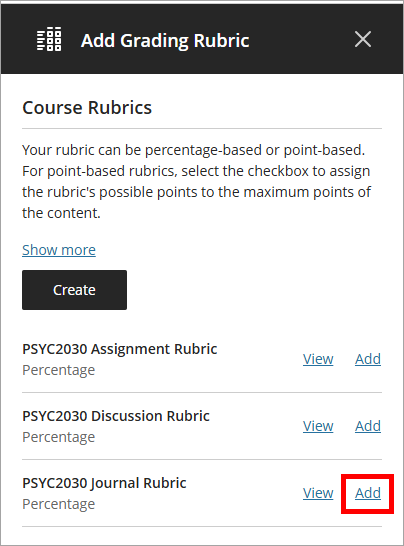
- Select the rubric to associate with the assignment by clicking Add.
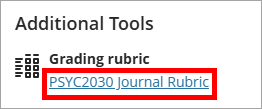
- The rubric is listed under Grading rubric. Click Save.
IDT Tips for Creating Rubrics
- Use clear, measurable criteria with distinct performance levels (e.g., Exemplary to Needs Improvement) that describe observable student work.
- Limit rubrics to 5–7 criteria and include targeted feedback per criterion or overall to guide improvement.
- Leverage the AI Design Assistant with intention for initial wording or structure, then review and refine to align with your course goals.