Create a Test
The test tool is used for delivering quizzes or exams. Some question types are automatically graded, while others require manual grading by the instructor.
Instructions
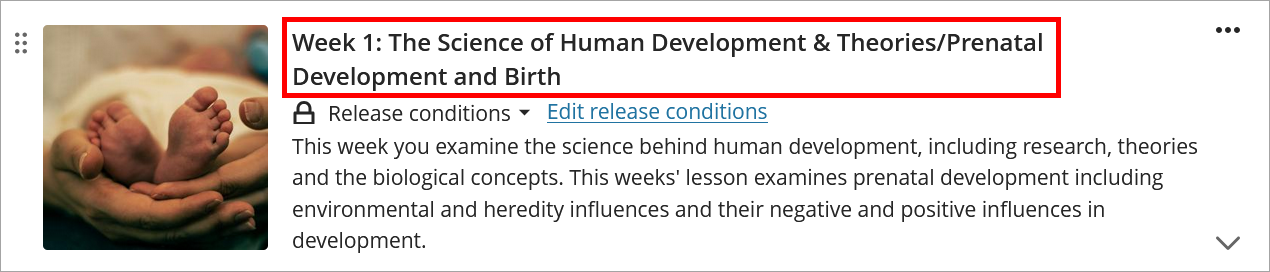
- Click on the week where the test should be added.
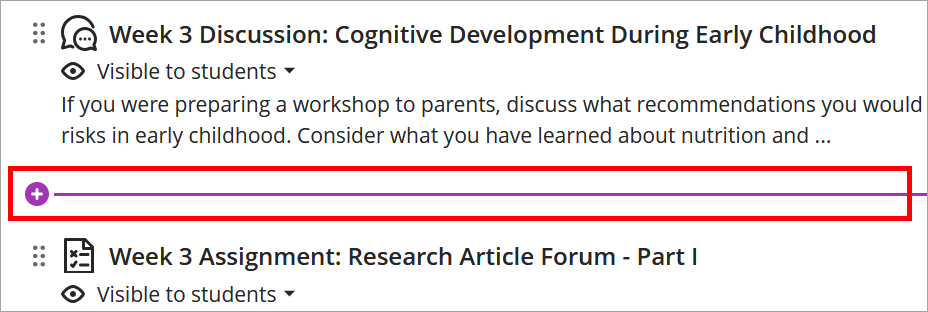
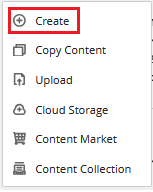
- Click on one of the divider lines separating the items in the weekly module and click on the plus icon (+). From the dropdown menu, select Create.
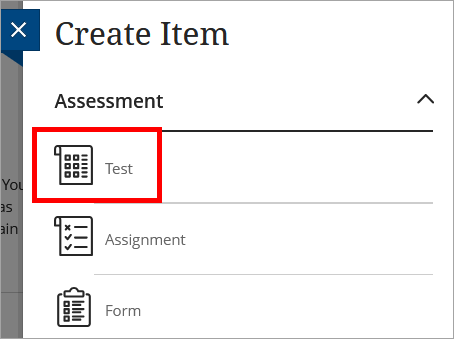
- Click on Test in the Assessment section of the Create Item menu.
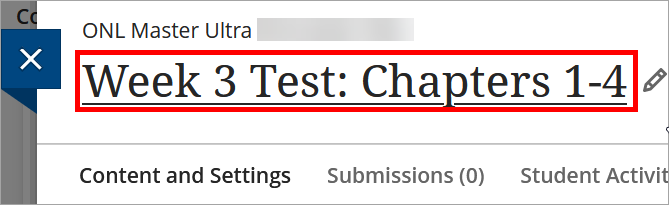
- Enter the test title.
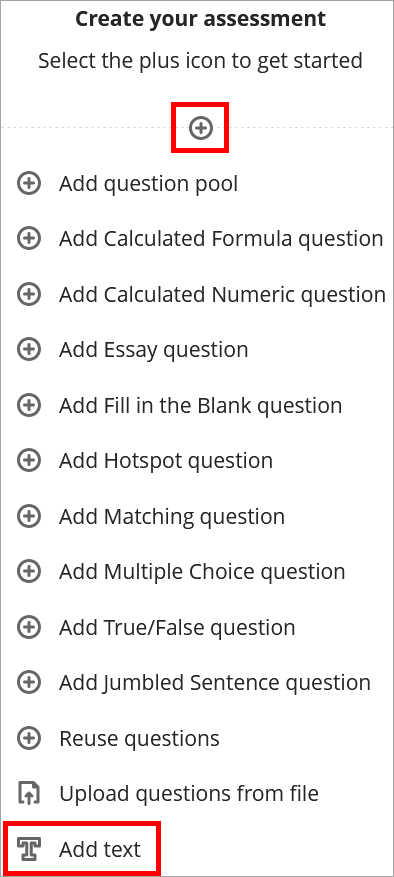
- Optional: To add custom instructions, click the plus icon (+) under Create your assessment and select Add Text from the dropdown menu. Enter the instructions in the text box. Click Save.
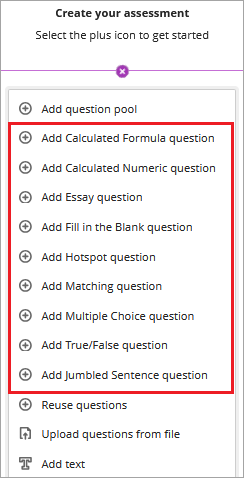
- To add a question, click the plus icon (+) under Create your assessment and select the appropriate question type from the dropdown menu.
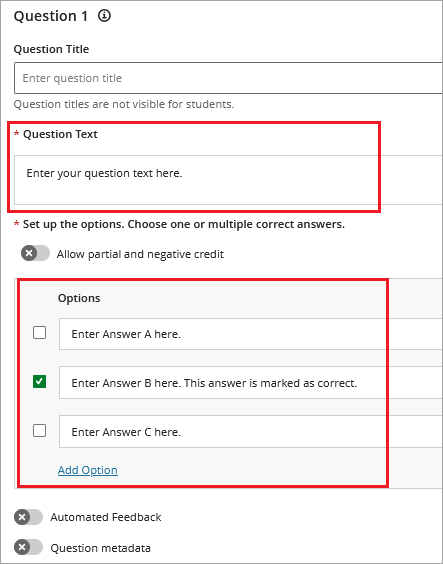
- Enter the question title (optional) and question text. For question types such as multiple choice and matching, enter all possible answers and check the box to mark the correct answer.
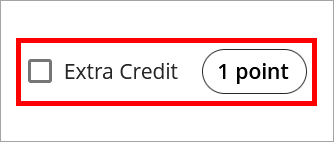
- In the upper right corner of the question editing box, enter the point value of the question and select the Extra Credit box (if applicable). You can also batch edit points when done.
- Click Save.
- Repeat steps 6-9 to create additional questions.
- Click the gear icon in the upper right corner to edit the Assessment Settings.
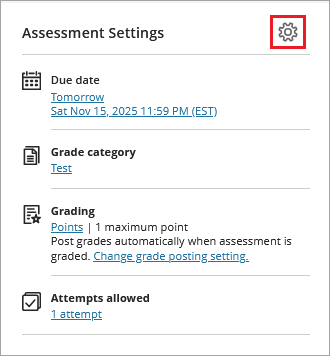
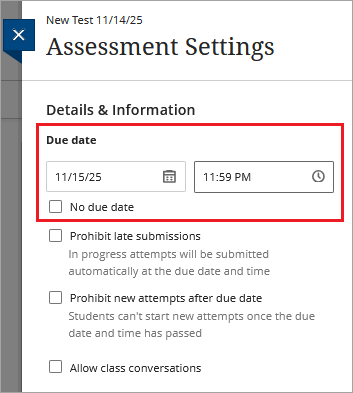
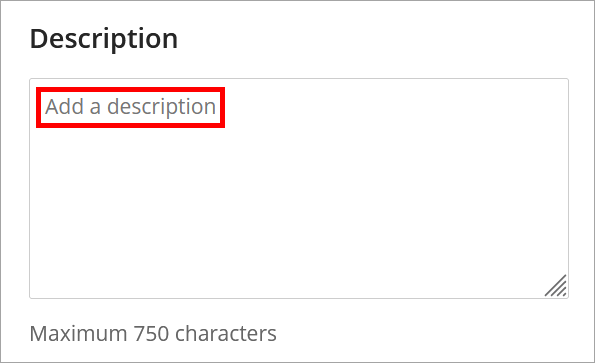
- Enter the due date. Add a test description. Click Save.
IDT Tips for Tests
- Utilize a consistent naming convention, such as Week 1 Quiz: Management Styles.
- As you build your Ultra tests, revisit the relevance of each item to ensure that every question still aligns with the course objectives.
- For more information on the different question types, review the Blackboard Ultra Question Types Guide.