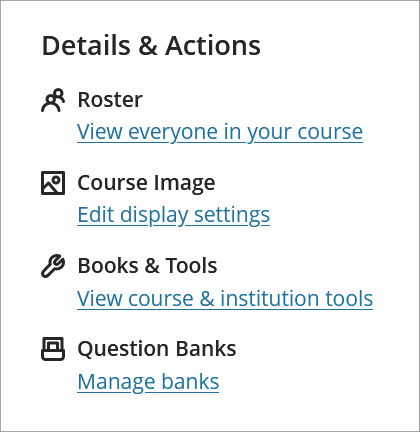
Details & Actions
The Details & Actions menu, located on the right side of the course homepage, provides several tools for managing the course. Options include:
- Roster: View students enrolled in the course. Use the icons in the upper left corner to toggle between tile and list view.
- Course Image: Select a course banner by uploading an image from your device or choosing a stock image. Click Edit display settings, then the image icon, and use the dropdown to choose the image.
- Books & Tools: Access course tools including the Accessibility Report, Kaltura, Turnitin, Zoom, and the Library Gateway.
- Question Banks: Build and manage question pools for tests and quizzes.
IDT Tips for Details & Actions
- Choose a Course Image that reflects the course.
- When possible, avoid images with text baked in, it may be hard for students to read.
- Reach out to IDT to learn more about managing question banks.