Add an Image
Add images to a document in their own content box. Easily resize and move to customize the document layout.
Instructions
- Create a new or edit an existing document with course content. Click the plus icon (+) to add a new block. Choose Image.
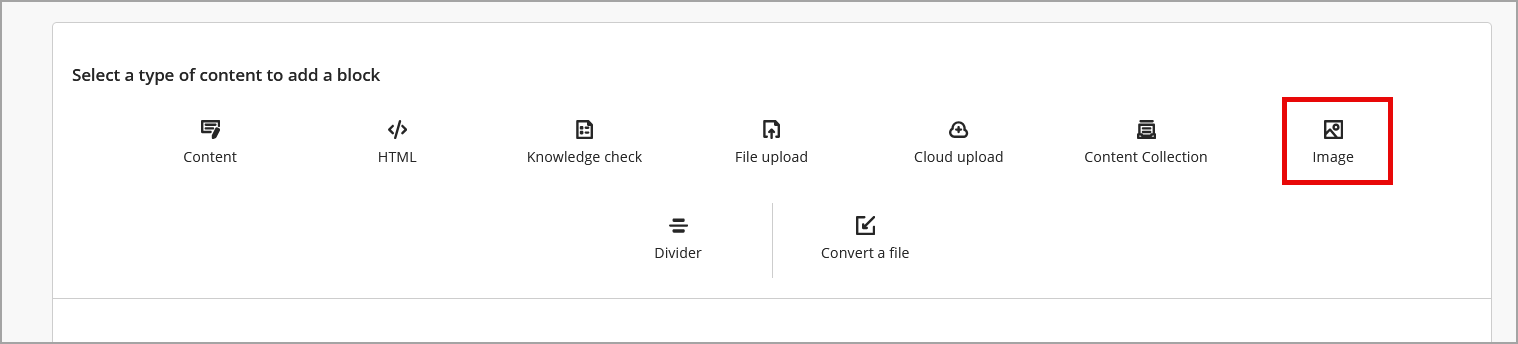
- Click Upload from Device to add an image from your computer.
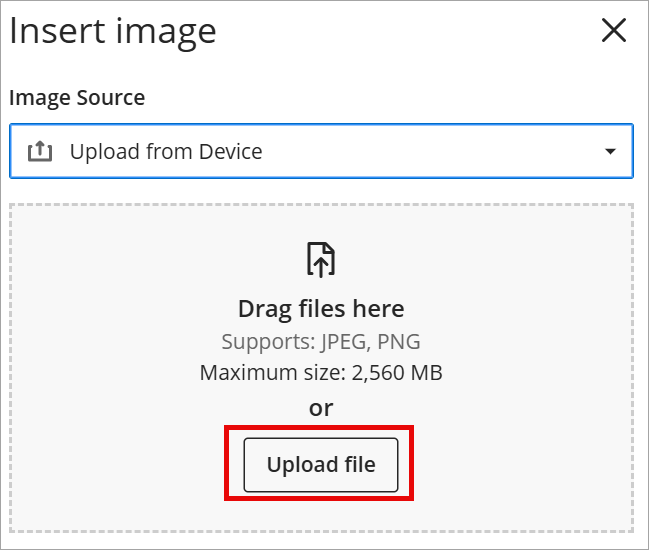
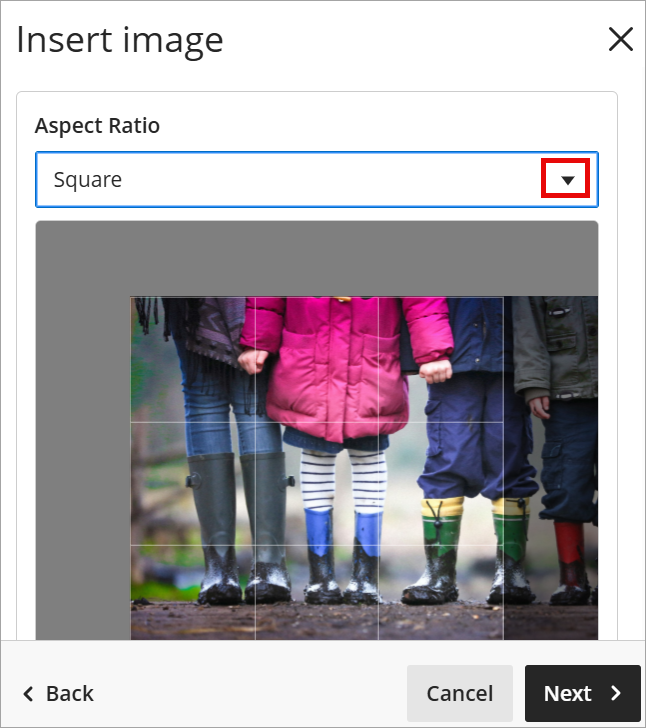
Note: Image files must be .png or .jpeg and no larger than 2,560MB. - Preview the image and adjust the aspect ratio using the drop-down menu (if needed). A grid appears over the portion of the image that is visible on the document page. Move the grid to adjust the visible portion. Click Next.
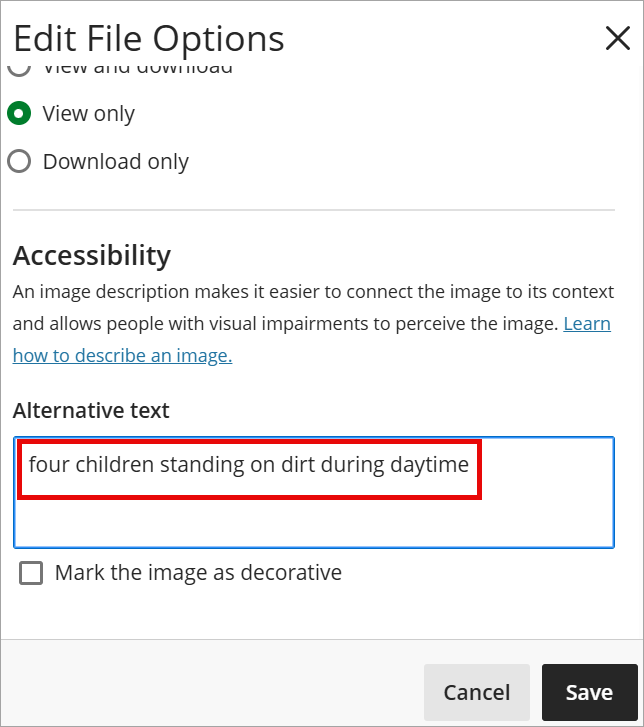
- Under Edit File Options, enter a description in the alternative text box to make the image accessible.
IDT Tips for Adding Images
- If an image is purely decorative, mark it as decorative.
- If an image provides information in a complex format, such as a chart or graph, write succinct alt text directing students to another location for more information.
- To learn more, visit our Course Accessibility page.