Release Conditions
Set release conditions to make weekly modules, individual items, or assessments visible to students automatically.
Instructions
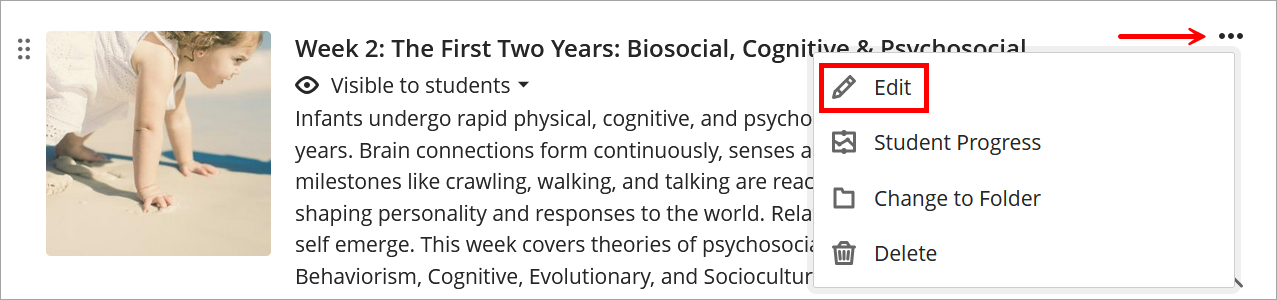
- Navigate to a weekly module, item, or assessment. Click the three-dot menu to its right and select Edit.
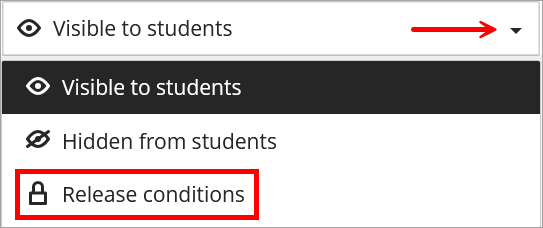
- Choose Release conditions from the visibility drop-down menu in the upper right corner.
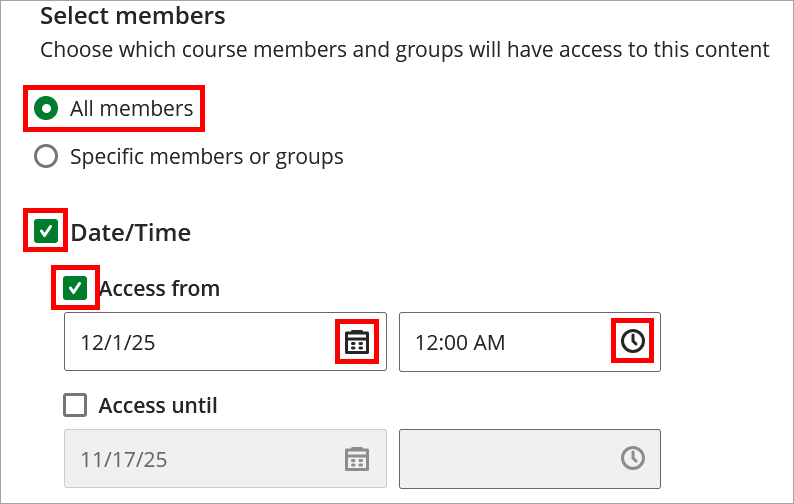
- Under Select members, leave the default set to All members. Check the box next to Date/Time. Add an Access from date and time by manually typing in the boxes or click the calendar and clock icons to choose. Do not add an Access until date. Click Save.
- To adjust a release date, click Edit release conditions under the name of a weekly module, item, or assessment on the course homepage.

IDT Tips for Setting Release Conditions
- Only apply a release condition when it serves a clear instructional purpose.
- Online faculty, refer to the Important Semester Dates document to see when content needs to be available to students.
- The Release conditions tool includes other advanced features. For assistance, reach out to IDT.