Student Preview
The Student Preview feature allows an instructor to experience the course exactly as students do. It can be used to preview how content appears to students, verify due dates, and ensure that all links and assignments function properly.
Table of Contents
Instructions
Entering Student Preview
- Navigate to the course you want to preview and in the upper right corner of the course page, click Student Preview.
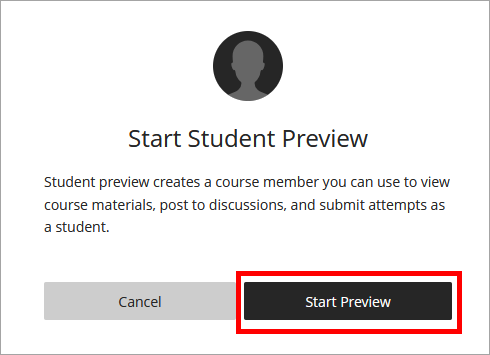
- A window appears. Click Start Preview to enter Student Preview. ulearn creates a temporary student account.
- Explore your course. Check that everything appears and functions as intended.
In student preview you can:- Check item availability
- Download and upload files
- Submit assignments and take tests
- Participate in conversations
- Participate in discussions and journals
- View grades as a student
- Experience group membership
Exiting Student Preview
- To exit student preview, click Exit in the top right corner of the course.
- Choose what to do with your preview data. When exiting, ulearn asks if you want to Save or Discard.
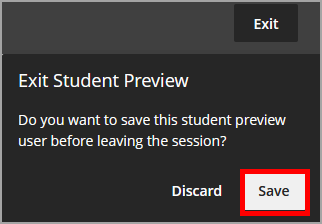
Save: Keeps submissions and grades so you can review them later from instructor view.
Discard: Removes everything you did while in preview mode. - Once you choose to save or discard the student preview data, you return to instructor view.
IDT Tips for Student Preview
- Student preview cannot be used with Turnitin.
- Before making content available, view your course from the student lens to verify that instructions are clear, attachments open properly, and submissions work as expected.
- Review the Gradebook from a student perspective.