Add Due Dates
Add due dates for all graded items in your course. This includes tests, assignments, discussions, and journals.
Instructions
- Navigate to the Gradebook.

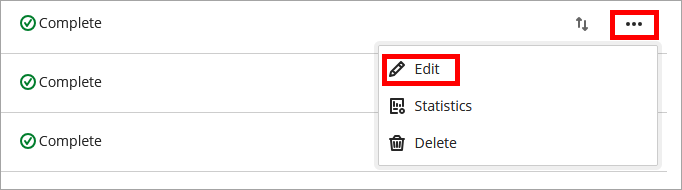
- Locate the assessment. Click the three-dot menu to its right and select Edit.
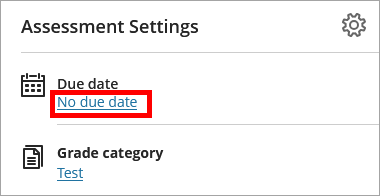
- Click No due date.
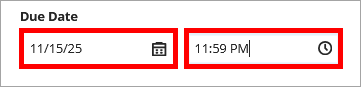
- Uncheck the No due date box (if needed) and manually enter a due date or click the calendar icon to select a date. To change the due time, click the clock and adjust. Click Save.
- Repeat steps 1-4 for all graded items.
IDT Tips for Adding Due Dates
- Adding due dates helps students understand when work should be submitted.
- The due date helps with navigation, but assignment instructions should live inside the item so students know exactly what is expected.
- After adding due dates, view the course in Student Preview to confirm that all requirements appear as intended.
- If you are Teaching Online, refer to the Important Semester Dates to plan the weekly due dates and weekly availability dates for the semester.