Post a Syllabus
Post your syllabus in the Syllabus & Course Info: Start Here area that includes a course schedule.
Instructions
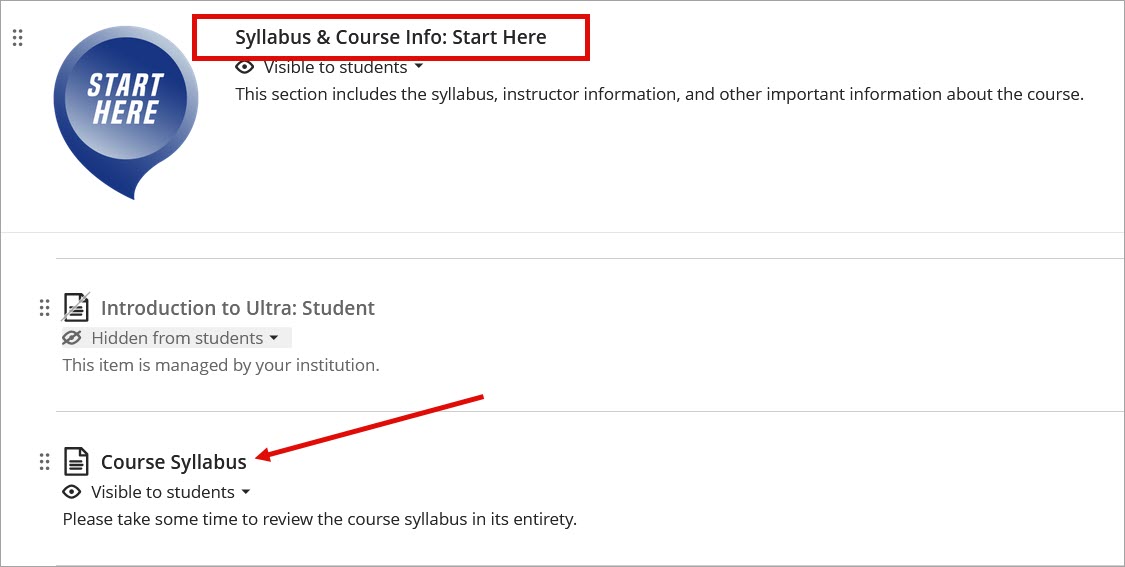
- Navigate to and expand the Syllabus & Course Info: Start Here Learning module. Click Course Syllabus.
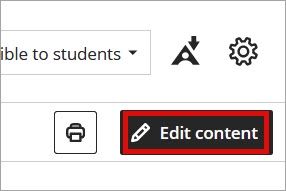
- Select Edit content in the upper right corner.
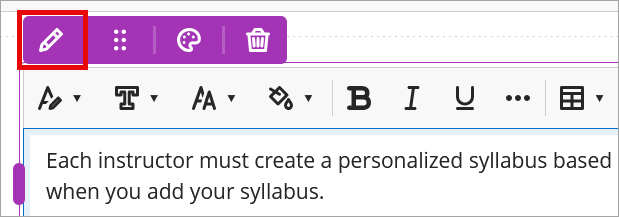
- Hover over the placeholder text and click the Edit icon.
- Remove the placeholder text.
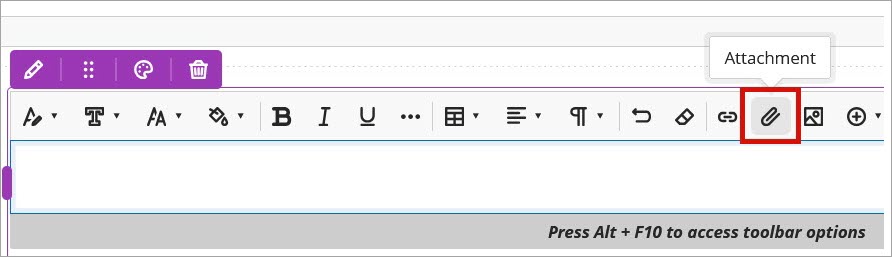
- Click the Attachment icon.
- Locate and select the file on your computer. Click Open.
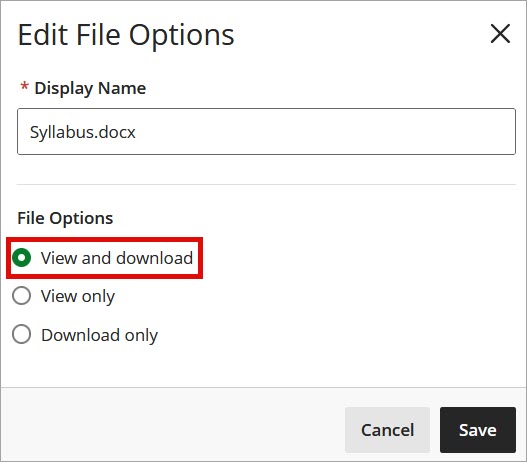
Note: Before clicking Save, you can edit the display name of the file. Keep the default File Options setting View and Download. - Click Save in the upper right corner to post the syllabus.
IDT Tips for Post a Syllabus
- Be sure to post the most recent approved university syllabus for your course.
- Before posting your syllabus, use the built in Accessibility Checker in Word.
- Instead of uploading a file, utilize the Convert a File option.