Create an Item
Create items including content, assessments, and engagement tools in your course. Faculty can customize items with titles, descriptions, media, and visibility settings to support student learning.
Instructions
- Start at the course Content tab.

- Click Insert Content (+) at the location to add the item.

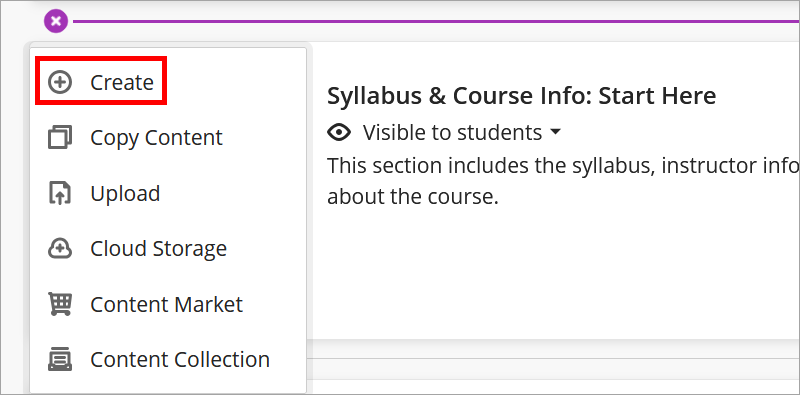
- Select Create from the dropdown menu.
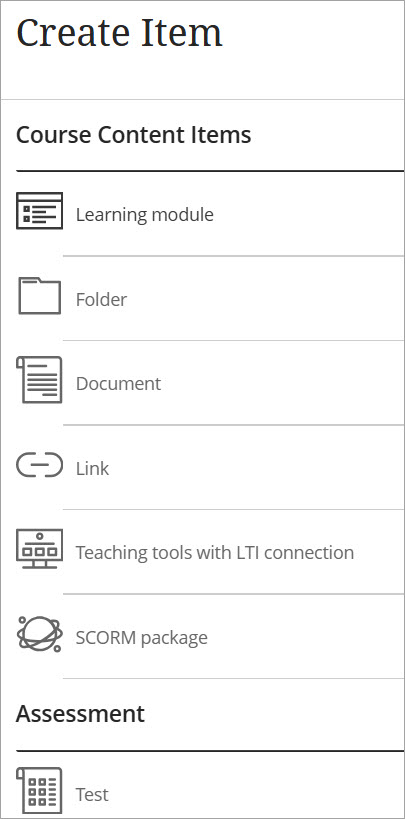
- Choose a Course Content Item, Assessment, or Participation and Engagement tool from the Create Item menu. Options include items such as learning modules, documents, tests, assignments, discussions, and journals.
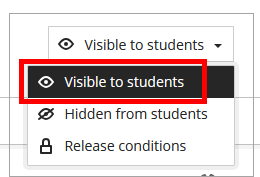
- Adjust the visibility setting to determine when students can view an item in the upper right corner of the page. You can make it visible immediately, keep it hidden, or schedule it to become visible later. See Release Conditions for more information.
IDT Tips for Creating Items
- When creating items, label them clearly and add appropriate context, such as an explanation of what it is or instructions for what students should do with it.
- Review the item by selecting Student Preview in the upper right corner of the course to view how students see the item.
- For more information on creating specific items, see our resources on Learning Modules, Documents, Tests, Assignments, Discussions, and Journals.